# Going paperless with Tesseract OCR
- URL: https://blog.jourdant.me/post/powershell-and-tesseract-going-paperless-with-ocr
- Author: Jourdan Templeton
- Published: 2015-01-04T00:38:00.000Z
- Updated: 2015-01-31T22:09:27.067Z
- Category: PowerShell
- Tags: PowerShell, Tesseract, OCR
- Summary: Using Tesseract OCR from PowerShell to read text from scanned documents, my first step towards sorting a mountain of paperwork automatically.
Find the code for this project at: jourdant/powershell-paperless
The New Year period always prompts me to look for improvements I could make in my life. After some searching, I came across this article ["Three Steps Toward a Paperless Culture"](http://www.ibaset.com/steps-to-paperless-culture/). A quick glance at my immediate surroundings confirmed that becoming paperless would be a great improvement for my lifestyle. Imagine all those paper records gone!
In New Zealand, there are [laws](http://www.aranz.org.nz/site/resources/general/recordkeeping_legislation.aspx#H52094-2) requiring you to keep business related records for at least seven years. Potentially this could become an insurmountable mountain of paper - a nightmare to sort, store and retrieve.
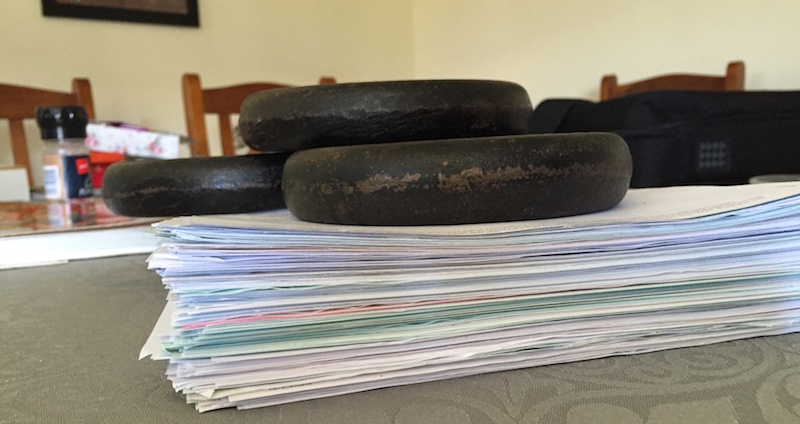
(A very small sample shown above, trying to flatten with weights...)
My scripting mind immediately took control seeking a solution to this problem. **Assuming I had a folder full of scanned documents, how hard would it be to sort them?**
As it turns out, **very easy**.
### Tesseract
[Tesseract](https://code.google.com/p/tesseract-ocr/) is my OCR library of choice. Originally developed by HP, Tesseract was later improved and maintained by Google.
[tesseract-ocr](https://github.com/charlesw/tesseract) is a .NET wrapper for Tesseract by Charles Weld. We will be using this library with PowerShell to perform our OCR tasks.
### Environment
If you want to proceed through this step quickly, I would suggest downloading and running the [Initialize-Environment.ps1](https://github.com/jourdant/powershell-paperless/blob/master/Initialize-Environment.ps1) script from my GitHub repo.
If you prefer to set everything up manually, create the following directory structure:
```
{Base Directory} /
-Input/
-Lib/
-tessdata/
-x86/
-x64/
-Output/
```
You will need to download the [tesseract nuget package](https://www.nuget.org/packages/Tesseract/) and copy the files to your Lib folder. Then download the [Tesseract libraries](https://code.google.com/p/tesseract-ocr/downloads/detail?name=tesseract-ocr-3.02.eng.tar.gz&can=2&q=) and grab just the tessdata folder in the language of your choice (I chose English). Place this folder also into the Lib directory.
### Reading text from an image
Reading text from an image is as simple as loading an image, passing it to Tesseract and receiving the output. For example:
```powershell
#Import System.Drawing and Tesseract libraries
Add-Type -AssemblyName "System.Drawing"
Add-Type -Path ".\Lib\Tesseract.dll"
#Create tesseract object, specify tessdata location and language
$tesseract = New-Object Tesseract.TesseractEngine((Get-Item ".\Lib\tessdata").FullName, "eng", [Tesseract.EngineMode]::Default, $null)
#Load and process image
$image = New-Object System.Drawing.Bitmap("test.jpg")
$pix = [Tesseract.PixConverter]::ToPix($image)
$page = $tesseract.Process($pix)
#Get text
$text = $page.GetText()
$confidence = $page.GetMeanConfidence()
#Cleanup
$image.Dispose()
$page.Dispose()
```
It's that easy. The crazy thing is, it will take me longer to scan all the papers than it will to have them sorted!
#### PowerShell module
I have put together a PowerShell module to make OCR in your scripts even easier:
```powershell
Import-Module tesseractlib.psm1
$ocr = Get-TessTextFromImage -Path "C:\Temp\test.jpg"
$ocr.Confidence
$ocr.Text
```
You can pass in either a ```[System.Drawing.Image]``` object or a string path to the image. A more advanced example could look like the following:
```powershell
Import-Module tesseractlib.psm1
$files = Get-ChildItem *.jpg | Get-TessTextFromImage
$files | Format-list
```
The module can be found in my [GitHub repo](https://github.com/jourdant/powershell-paperless/blob/master/tesseractlib.psm1).
### Conclusion
It's really easy to read text from images in PowerShell.
If you are looking to add OCR to your WinRT app, I would recommend checking [this post](http://irisclasson.com/2014/09/30/video-get-started-with-optical-character-recognition-with-the-ocr-for-windows-runtime/) from Iris Classon. There's even a video to go with it!
I have to go now, my giant stack of paper awaits. Another post will follow with my progress using this module.
Jourdan